Showing posts with label Mac. Show all posts

Apple - iOS 5 review

http://images.apple.com/ios/ios5/images/overview_hero.png
Apple - iOS 5 includes more than 200 new features for your iPad, iPhone, or iPod touch.

New version of mobile operating system, Apple took the best developments of its competitors and made them even more convenient. This, of course, refers to the new notification system and integration into Twitter . However, other innovations have been at least surprising. We waited for some functions, but have other - more interesting .
 

1500 new opportunities for software and 200 new features for ordinary users - a decent and somewhat standard figures for each significant upgrade iOS. At that time, as the iPad two cheerfully to install the new firmware (the review will be, yes!), Go over the new features of the system, which we so far have not been told.
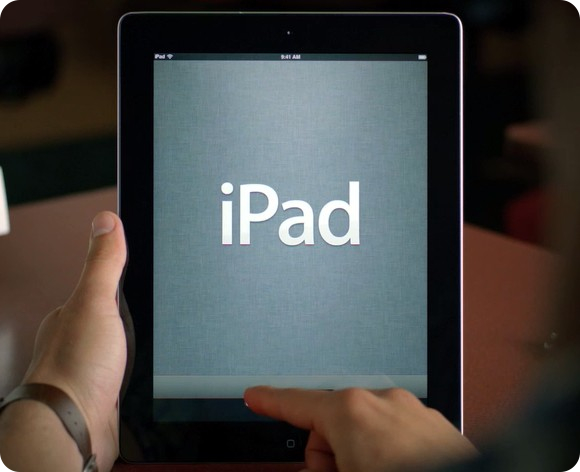


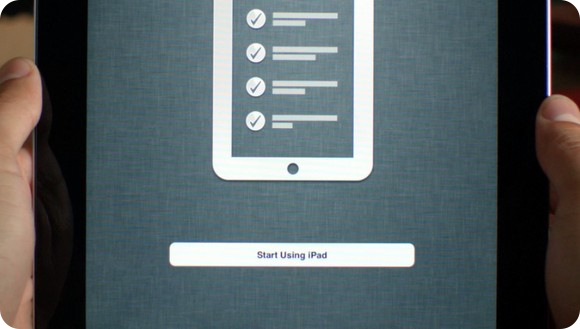
From this autumn all iDevaysy finally become full-fledged mobile device, completely independent from your computer. Because now when you first turn your iPhone or iPad with iOS 5, we were met not "string" and an icon iTunes, and the welcome screen and the initial configuration of the device. Like when you first install Windows and Mac OS, we introduce regional and personal data, set up to connect to Wi-Fi, set the synchronization method - and all the gadget is ready to use. All the music purchased from the iTunes Store and all applications, acquired the App Store, you can instantly download from the respective stores. Whole package. The advantages are obvious legal content.
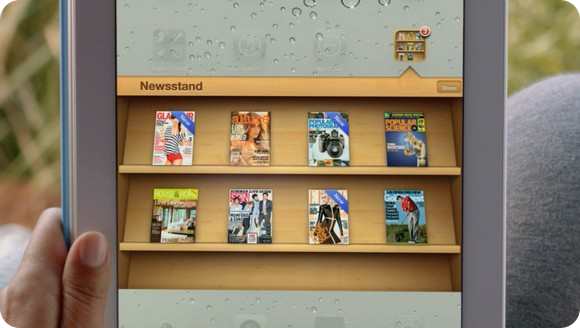
 
 
We turn to the built-in applications, and start with the new - Newsstand, a Russian localization - Kiosk. This is a separate series of shelves, which are automatically posted all purchased magazines, as well as their releases, downloadable in the presence of paid subscriptions. In the future, here to move all electronic publications that are sold in the App Store.
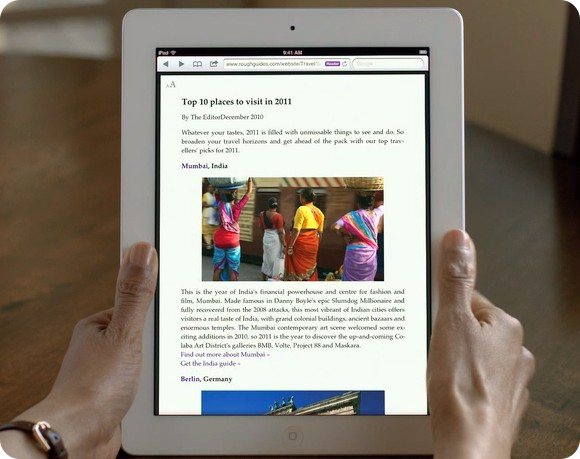


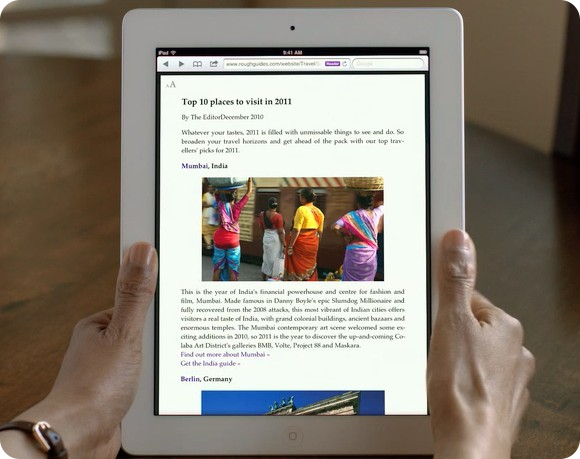
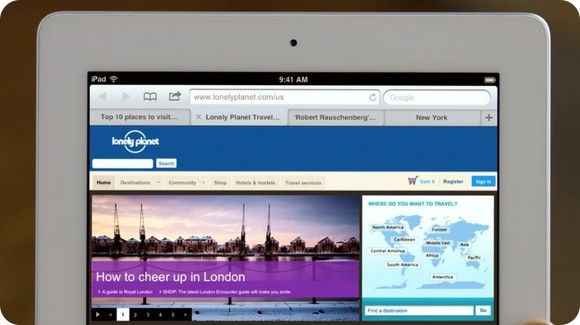
The most convenient and at the same time a simple browser, Safari has been updated and now finally supports tabs. No windows, accessible via a separate menu, namely the tabs that can be moved as zablagorazumitsya. Two more brand new features in the browser generated by third-party programs like Instapaper and service ReadItLater. First - Reader. It removes all "unnecessary" from a web page, leaving only the text and pictures. Formatting in this case remains in place. Second - Reading List, a convenient alternative to the system bookmarks. The needed page can be "set aside for later and return to them through a separate interface panel.
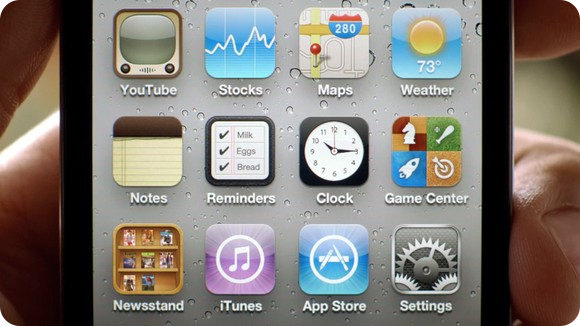


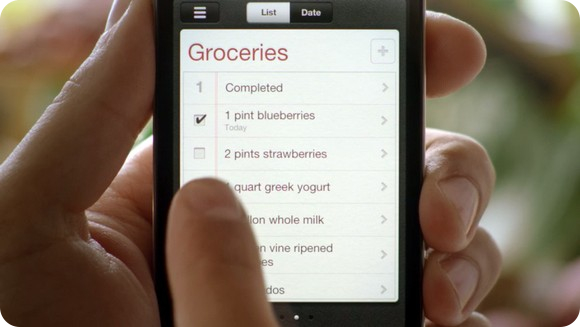
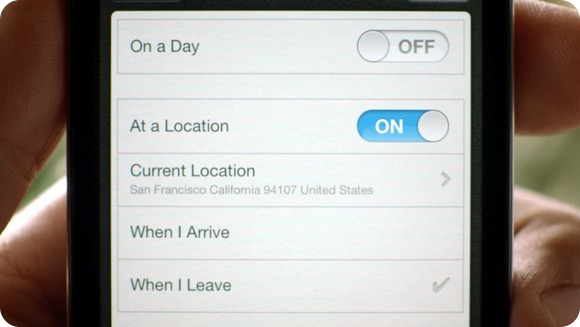
On the desktop there was another new application - Reminders. This is a task manager and "napominalok, now built into iOS. Nicely designed, it allows you guessed it, plan a small problem and combine them with a plan for the day from the calendar. A big plus: the standard calendar reminders not pereseskayutsya with Reminders, so that your "Buy milk" will never be blocked by paragraph "business meeting". You can set the tone and mark the place the task on the map.



During the WWDC transition to the new presentation of the application the Camera called the author of a surge of skepticism. Apple took several years to make such a simple feature, like photographs of the volume keys. But now we are naturally very happy - because it's convenient. On the screen appeared a separate key lock, causing the camera. In the annex, in addition to additional options for the shutter and manual zoom, there was a very useful feature - built-in photo enhancement. When you click edit and leveled the entire histogram contrast. There you can rotate, crop photos and remove red eye.

 
 
For the first time in Annex Post Office the opportunity to format text in bold, italic and underlined letters. This ensures that our letters sent to iDevaysov, become a bit more diverse and easier to read. And this will now no longer need to use the web interface. Supported reducing the size of selected text. Letters themselves can be marked - a useful feature to highlight the appropriate correspondence. Looking ahead to the impending review of the firmware, we note that the limit for the locally cached emails have increased up to a thousand pieces. Just do not forget about support standard secure S / MIME - corporate segment will appreciate it highly.
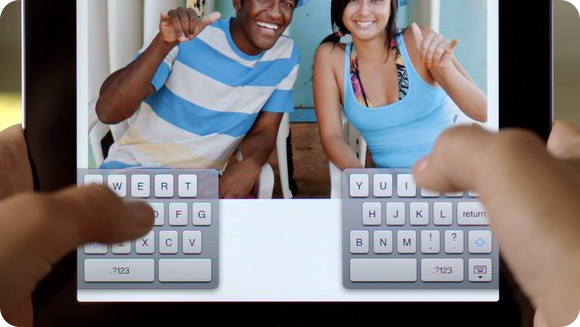
 
 
With the new keyboard so all happened suddenly. Perhaps it was the least expected feature in the new firmware. Nobody even thought that Apple will go to the division of virtual keys into two panels. This system fared well on devices from other manufacturers and will now be available to all owners iPad. One-touch keyboard is literally spreading the two halves of the screen. Probably have to get used to it (hint: really have to). But now, typing on Apple may be on the move without taking both hands.
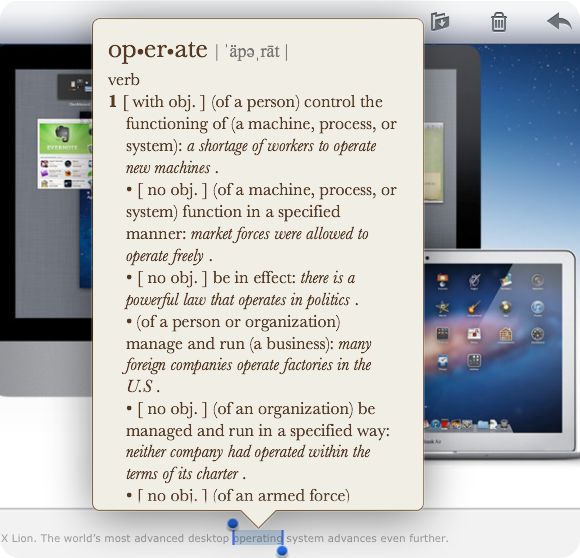
 

In iOS also somehow have built a full-fledged dictionary, by analogy with OS X. Works is simple: select a word and get its meaning, pronunciation and origins.
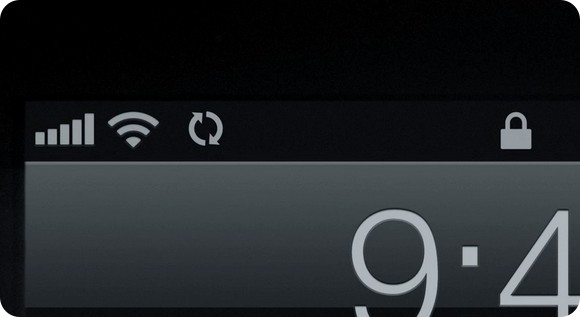
 

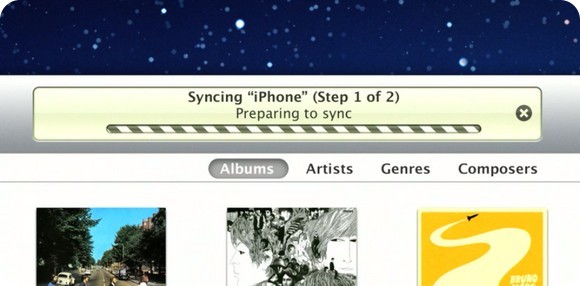
From now on, updates will be downloaded over the air "is not in the format of the entire firmware, but as a" patch ", mounted on top of iOS 5. The rumors were true. And what about the wireless sync? Just open iTunes on your computer, go into the settings iPad and initiate the process. Everything else the system will do itself.



Seriously altered, and Game Center. As if in some Xbox Live, users iDevaysov can upload your photo, to score points Achievments, browse lists of foreign friends, find games for his taste, and install them, do not go into the App Store. Added support incremental game: As soon as your opponent will move, you will be notified. Slowly but surely, Game Center is transformed into a decent gaming network and useful application on the SpringBoard.
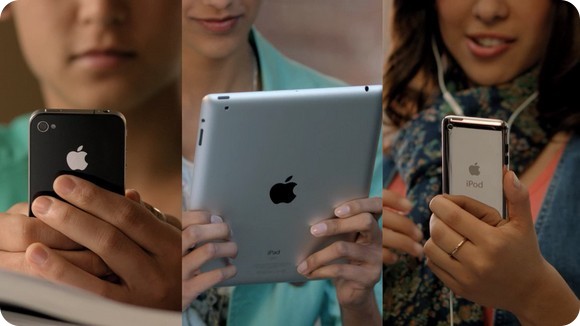


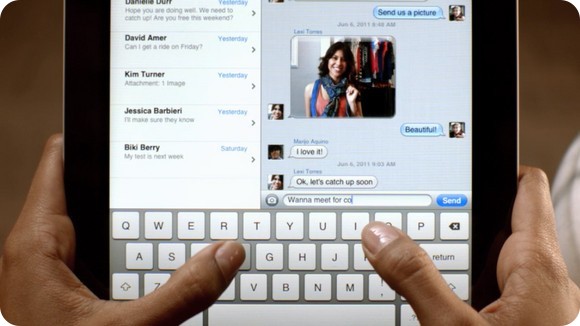
Communication platform for the exclusive owner of the iPhone and iPad, an abundance spread in the App Store, have lost all meaning with the advent of application iMessages. Outwardly, it looks almost the same way as SMS icon in the last firmware iOS. But in addition to communication via the cellular network operator, iMessages offers to exchange messages directly through the server, Apple. Naturally, absolutely free. The main thing to know the e-mail recipient, which is configured to the device.
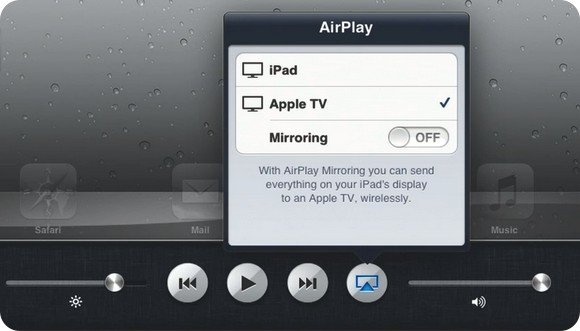


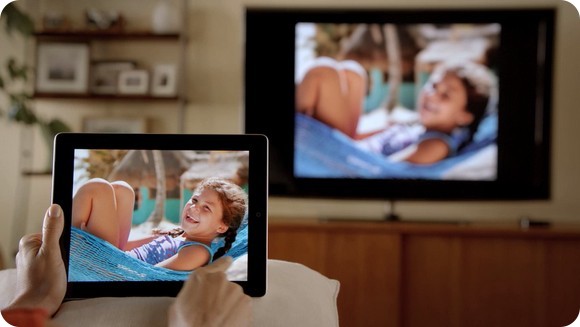
We almost missed the opportunity to transfer video from iPad 2 on Apple TV without any wires to HD-resolution. No longer need any cables: your Springboard, and any applications appear instantly on your TV screen. And iPhone is blinking flash, when we miss calls or comes to a new post.
Changes in more detail, but they went beyond the official presentation. The most daring and attached to the accounts of the developers already had the opportunity to install the beta version iOS 5 on their mobile devices. We are pleased to include in their number.

What is Apple - Thunderbolt and how it can work?

What at first seemed the most ridiculous of all the buzz surrounding the new MacBook Pro, is now almost a reality. Light Peak is ready for release and it is safer to do so tomorrow under the name Thunderbolt detected in the case of the new model of laptop. 

Apart from the fun of pronouncing the name invocásemos screaming as if some cosmic power, we know from the latest images Thunderbolt is not a completely new connection port but that is completely integrated in Apple's Mini DisplayPort with consequences that have not know. Does it? If we take a look at the patents that have been discovered recently about this, we can find out a bit about what we might see tomorrow explained in detail by Apple itself. 

If we join the little we know about the specifics, we can get an overview of the capabilities that can have that new port. Here we go. 

The expected arrival of a faster port 

 The arrival of a successor of the currently used ports, USB 2.0 and FireWire, seemed far away despite warnings in the form of rumors that reached us and promised their marketing in a short time . The tagline of "Yes, come, and it will Light Peak" has been used extensively to demonstrate exaggerated rumors not so long ago. But that, by the evidence, ends tomorrow.
 
Let's start with the specifications. Originally designed for use with optical fiber but made ​​from copper to speed their arrival, Light Peak promises speeds of 10 Gigabits per second in the short term and 100 Gigabits per second in the long run in both directions simultaneously. For comparison, the Firewire 800 port achieves speeds of 0.8 gigabits per second. 

But how will it behave in the Mini Display Port? When I saw how it was implemented I could not help remembering the outline of the rumor that we saw late last year: 

A patent to rule them all 

Not exactly the same because the scheme fuses including electric cable, but we could find a similar concept. Thunderbolt is fused to the mini DisplayPort port, which suggests an adapter cable to take advantage of new technology and at the same time to connect a screen. 

Why of course ... what will happen now with peripherals? Will he drives Thunderbolt? Camcorders Thunderbolt "? Has not heard of them, and USB 3.0 will have gained ground with the first compatible peripherals that interface. What I scale is the "Thunderbolt high speed i / o" photographed furtively Thunderbolt does not speak of "port", but Thunderbolt i / o. It sounds more like an improved system connectivity and ports of the Mac interface is not a new independent connection, right? 

Knowing that it is connected to the Mini DisplayPort, looking to a new version of that port with the addition of a new interface through which data can be passed in turn to a series of adapters might work faster. Who knows, maybe we find a way to improve transfer rates of our existing peripherals, with a high price but having to purchase more adapters.
 
The bit rate is what matters 

That said sospesa yet the possibility of a new connection interface. how much information passes through a data cable when using a screen like ... say the LED Cinema Display 27 " ? It seems silly, but if Thunderbolt anchu will share your bandwidth with other devices we can find surprises. I've been talking with Frikjan , friend and reader of this blog with experience in these matters, and the data is obvious: trying 3686400 pixels with peak light interface occupy almost the 10 Gigabits per second transfer of the cable (2650 pixels x 1440 pixels x 30 bits per pixel x 60 Hz are more than 8 gigabits per second, and the Light Peak interface uses more bandwidth). If we have to connect more peripherals, it will not be much available bandwidth for all data that have to be transferred. 

Unless, of course, that Intel and Apple have thought about this and have created a system whereby separate data transfer screen data peripherals can be connected through adapters. Anyway, knowing it is a laptop does not always have a screen connected to it and have incredible transfer speeds that are compatible peripherals.

What is DNS? Changing DNS in Windows, Linux and Mac

Changing DNS

DNS stands for Domain Name System or Domain Name System. DNS servers are responsible for translating domain names in your IP address, which is the number that identifies the server that sends the request. Simply put, the DNS would a telephone directory in which looking for the name of a person obtain your phone number (89248106100).

How do the DNS for my connection speed?

The DNS only the time involved in establishing the connection between two computers (eg when entering a site). When the browser takes a long time to find a website (in IE it says "Searching site: eldominio.com" in the status bar) is usually either because our primary DNS is down or for some other reason (saturation of users, etc.. ) has a very high response time. The DNS does not influence while transmitting information, such as when you download a file from a web. Therefore, a good DNS to improve browsing speed, but not the transfer.

Should I change the DNS gives me my carrier

In the configuration of TCP / IP can be specified in a list, which we want to use DNS. To resolve a domain name, our system sends the DNS query to the first listed. If you are not operating, is declining and consulting the rest of DNS in the order in which they appear, until it finds one that responds.
 
Usually occur many times the ADSL connection is operational and yet if we try to access a correct URL gets us "Could not find server or DNS error." This is because at that time all DNS listed are down. To fix this just change the DNS for other than work.
 
In principle it is advisable to use DNS to our operator as the consultations have to go through fewer nodes and often give a better response time. Only in the event that our operators are busy is convenient to use other external. Another solution is to use public DNS. Often the DNS operators have more than those who give their users and are often less crowded.

Windows 7 and / or Windows Vista

Windows-DNS-7.png
  1. Control Panel> View network status and network tasks
  2. On the left, Change Adapter Configuration
  3. Select the network card you want to change. If you use Wi-Fi will be a wireless network connection, if not, a local area connection. With the right mouse button, Properties.
  4. In Internet Protocol version 4, Properties.
  5. Choose Use the following DNS server addresses and enter the you want.
  6. OK and Close.

Windows XP

Local network properties in Windows
  1. Go to Control Panel> Network Connections
  2. Open the network connection you want to modify
  3. Click the Properties button
  4. Double click on Internet Protocol (TCP / IP)
  5. Select 'Use the following DNS' and enter your computer first.
  6. Click OK

Linux

1. Edit / etc / resolv.conf
  nano / etc / resolv.conf 

2. Have similar content to the next
  nameserver 80.58.61.250
 nameserver 80.58.61.254 

3. Modifies the IP's listed, or add new ones
 
4. For those IP's remain in effect after a reboot, edit the file / etc/dhcp3/dhclient.conf, adding at the end the following line:
  supersede domain-name-servers xx.xx.xx.xx, YY.YY.YY.YY;
where xx.xx.xx.xx and YY.YY.YY.YY are, respectively, the IP's of primary and secondary DNS desired.
 
5. Save the new contents of both files.
 
6. And finally, for the changes to take effect immediately run in a terminal (with root privileges):
  / Etc / init.d / networking restart

Mac OS X Leopard

  1. Get the Apple icon (top left)
  2. Select System Preferences
  3. Click the Network icon
  4. Click the Advanced button
  5. Access the DNS tab

How to backup, upgrade and restore software for an iPhone, iPod touch or iPad?

For best results, make sure you have the latest version of iTunes before attempting an upgrade or backup device.

How to back up your iPhone, iPad or iPod touch

iTunes makes a backup of your device each time:
  • Sync with iTunes (automatically during the first synchronization and each time you connect to your computer)
  • Update from iTunes (automatically, without prompting)
  • Binds with iTunes (you are asked to perform a backup before starting the restore process)
Although iTunes makes a backup of most device settings, downloaded applications, music, videos and photos are not included in this copy.
Whether you're restoring from a backup copy of iTunes, the settings of your device, music, videos and photos will be re-synchronize with the device if the "Sync" is marked on the corresponding tabs iTunes . If you choose to restore your device as a new user, downloaded content, music, videos and photos will not sync until you check "Synchronize" on iTunes the corresponding tabs.
You can backup or manually restore your iPhone or iPod touch from backup. To do so, just Control-click or right-click the icon in the shape of iPhone or iPod touch to the left of the iTunes window, select Backup / Restore backup *:


* Restore from a backup is not the same as performing a full restore software. If you do a restore from a backup will recover the settings, the application data and other information stored in a previous backup. If you do a complete restoration software will delete all the contents of the device and return it to its factory defaults. More information on the "Software Restore" below.

Updating your iPhone or iPod touch iPad

iTunes can also update the software on your device. When you begin the process of updating your device, iTunes performs a standard backup * (as discussed above). To update the device software, you must follow these steps:
  1. Make sure you have installed the latest version of iTunes before attempting the upgrade.
  2. Connect the device to your computer.
  3. Select your iPhone, iPad or iPod touch when it appears in iTunes under Devices.
  4. Select the Summary tab.
  5. Select the option for updates.
* Updating the device does not affect the setting or user content.

How to restore your iPhone or iPod touch iPad

Using Restore your device is part of standard procedure for troubleshooting . By resetting the device will erase all data on it, such as songs, videos, contacts, photos, calendar information, and any other information. All settings are restored to their factory settings.
Whenever I go to restore your device, Apple highly recommends that before you do a sync to back up any changes made since the last synchronization. If you have rented movies on the device, see Use Rights rent movies on iTunes Store U.S. before restoring.
Follow these steps to restore your device:
  1. Make sure you have installed the latest version of iTunes before attempting the upgrade.
  2. Connect the device to your computer.
  3. Select your iPhone, iPad or iPod touch when it appears in iTunes under Devices.
  4. Select the Summary tab.
  5. Select the Restore option.
  6. When asked if you want to back up your settings before proceeding, select the Backup option (as shown in the picture below). If you just make a backup device, it is necessary to create another. 
  7. Select the Restore option when iTunes will request (if you backed up your device, do not have to worry about restoring it). 
  8. Once you have completed the restoration process, the device restarts and displays the Apple logo while turning:
    IPhone only: for the iPhone after a restore, the device displays the screen "Connect to iTunes". Keep your device connected to the screen disappears "Connect to iTunes" or see the message "iPhone activated." If iTunes does not have Internet access, you can not complete this step.
  9. The final step is to restore the device from a backup. Once your device is restored (and in the case of the iPhone, the activation process), you should see the following in iTunes:
    Select the backup you want to use for your device and press the Continue button to complete the restoration of it.
If you do not want to do the restore from a backup, select "Set as new device ...". To store the backups that iTunes has done on previous occasions, be sure to back up the appropriate directory before selecting the option "Set up as new device." 
 
iTunes saves files in the backup at the following locations:
 
Mac: ~ / Library / Application Support / MobileSync / Backup /
In Windows XP: \ Documents and Settings \ (username) \ Application Data \ Apple Computer \ MobileSync \ Backup
In Windows Vista and Windows 7: Users \ (username) \ AppData \ Roaming \ Apple Computer \ MobileSync \ Backup \

Restore your new iPhone, iPad or iPod touch from a previous backup

If you upgrade or replace your device with a new, perhaps you can restore the old backup to the new device. To upgrade from the original iPhone to iPhone 3G, see these instructions. You can update a device with the backup of a different kind of device, most of the settings are transferred to the new.
Note: During the process of restoring the old backup to the new device, maybe the iTunes progress bar stops. If this happens, wait a little longer for the upgrade is complete.

Jailbreak iPad iOS 4.2.1


jailbreak-ipad1
The network has the first option Jailbreak iPad iOS 4.2.1
Attention! Please note that this version of Jailbreak iPad iOS 4.2.1 tethered, ie, every time you reboot you will have to re iPad Jaylee device using Redsn0w. At this point, it's the only way to produce Jailbreak iPad.
So, what should be done to Jailbreak iPad iOS 4.2.1

Step 1. Update iTunes on your computer to the latest version of iTunes 10.1
 
Step 2. Set iOS 4.2.1 on your iPad, not forgetting to make a backup device.
 
Step 3. Downloading Redsn0w 0.9.6b4
Mac
Windows
Step 4. Download the official iOS 4.2.1 HERE
 
Attention is now close iTunes!!!
 
Run RedSnow (on Win 7 run with Administrator rights and compatibility mode with XP SP3).
 
Step 5. The program Redsn0w 0.9.6b4 specify the downloaded firmware file «iPad1, 1_4.2.1_8C148_Restore.ipsw» clicking "browse"
Redsnow-iOS-4.2.1
 
Step 6. Next - choose at will. «Install Cydia» required
 
jailOS-4.2.1
Step 7. Follow the instructions in the program Redsn0w 0.9.6b4, waiting for the completion of the process on the device itself.
 
Step 8. If we get a result like this:
Cydia-iOS-4.2.1
 
to Cydia started working repeat the first steps, and the sixth option to choose:
 
iOS-4.2.1-Jailbreak
 
It remains only to wait a bit (on the phone screen appears Downloading Jailbreak Data ..., then running "Pineapple", after the jailbreak iPad reboot

Reasons for the slow computer and processed (for beginners)

Reasons for the slow a PC for beginners
Reasons may make your computer works slow and unfamiliar:

1. Download some free software unimportant
2. The incompatibility of any conflict of some cards installed inside your fund
3. The large number of cards mounted device, and particularly Kurt television, and satellite
4. The existence of errors or corruption in one of the operating system files
5. Alramat different vehicle specifications in terms of where is the consensus among them could cause an
Problems and also the existence of technical problems in the motherboard and a private entrance cards and Alramat
6. Download web pages without a connection
7. Browse pages black and very dark
8. Almaekerosowic open Word while browsing
9. Jump between open windows from the Internet
10. Norton Anti Virus program if not installed properly
11. Software download (torrent) has a role in the slow device
12. The large number of connections that come out suddenly while browsing
13. Computer random pressure conquest of many of the windows
14. Download images from many locations
15. The presence of malicious software come and go freely in your operating system
16. Do not update your anti-Alfayosat a League
17. Failure to address errors in a timely manner through the search and left to accumulate in the device
18. Operation of some types of CD-ROM, where some improper
19. Operating systems installed or modified by the Part Played
20. Do not run the maintenance treatment of the device almost daily basis
21. Do not delete the temporary Internet files and make them accumulate without disposal
22. Do not delete files, archives and make them accumulate without deleting them and their Disposal
23. Not scan the disks and clean them and carry out the defragmentation on an almost daily
24. Run Rail Blair to listen while browsing the Internet also has a role in this

Speed ​​up your PC without software tricks and many simple


Many complain of slow their computers and see that for many reasons I will mention some of them with solutions on this issue ..

Is in order:

1 / Lack of maintenance of the device
2 / departure was delayed and Windows
3 / programs that carry with start-up
4 / graphical interface with takeoffs and Windows
5 / slow IE (browser)
6 / jam files memory
7 / jam program memory
8 / Phone Software Dipset
9 / and the presence of viruses

Lack of maintenance of the device

Maintenance Wizard is a program that comes with all Windows Asaddarath which originally consists of three programs
Built with some of it: clean the disk and scan disk and defragmenting the disk and is intended to mitigate the
Device in order to increase speed and recommended that it be cleaned every two weeks is Alhardsk temporary files
And temporary Internet files that weigh on the device and not a job for her
As well as examining the contents Alhardsk if there are any errors in order to fix it, as well as a process to remove the most important and largest
Retail and which solves the problem that with time and install software and then delete it there is a large voids in Alhardsk
It takes a lot of time and the removal of retail Almcklphit resolved we will prepare for the programs Settings make it work
One-click applications without pressure and the pain of the head of Inter Nilltha only for the first time then the program settings Tnhfez
There is no need to repeat them when running go to Start Menu - Accessories - System Tools - Maintenance Wizard
Of course, will choose to change the settings for one-time only because the next time will keep Windows amendments
We will have what you need then only to choose the implementation of maintenance here and now choose to customize in order to determine the options that will be cited
Here, we choose the allocation if you do not want to work the processor only if you are occupied and thus the automatic interruption of operation for him and this
Removal of retail settings, including select settings and make sure there is a sign of health to re-order and choose as well as the arrangement
Hard disks and are the settings ScanDisk Settings select the ones most important thing to make sure there is a check mark in front of
Correct the errors and then select Settings Select from the options (outline) is never in order to continue the wizard is not expected
Accepting the report and options (conflicting files) Select delete in order not to weigh on your machine do not be afraid you will not delete
However, corrupted files here and select Disk Cleanup Settings Place Settings marks true on the folders that you want
To complete when you run the wizard and I recommend that you inform all of them except (Recycle Bin), and then choose Exit
After these adjustments will not need to choose will not perform maintenance far from the first image we had these
Amendments in order not to stop only if the processor never finished the whole process may take note that he usually half an hour
To an hour most likely, therefore, suggest that running the wizard and leave the device (to Chan is interrupted for Ochgalk)

Departure was delayed Windows

When running the device scans the device starts Alhardsk and devices connected to the other how to summarize it ...
1 - prevent the device from the scan floppy disk drive A, and CD-ROMs and the double benefit of many of the annoyed
Turn off the device because of the presence of a floppy disk motor. Note that this is the way you shorten the time because the processor
Works without inspecting the floppy disk and CD ROM, reducing the time because the processor will go directly to the CIA.
At the beginning of operation of the device to enter the BIOS of the Del you come out blue list (Award Bios) select the ones on the second command
Left a BIOS FEATURES SETUP and from select Boot Sequence and working buttons on the Page down & Up
Select option (C only) directly mapped out the previous steps, when you need to do the floppy disk A: / and go back to the original state
2 - To prevent the device from the keyboard scan and this is also a double benefit, oftentimes the keyboard device is offline
Are asked to reboot the device and connect the keyboard and this movement operates regardless of the device and a keyboard or not
Select the first command on the left, something STANDARD CMOS SETUP and from the command Halt On and stir Bizri Page down & Up
Choose the option No error of course out of the option Use the Esc button and do not forget when you're working that out with out with the conservation of the amendments

Programs that carry with start-up

And of course more speed during take-off device to ease you of programs that work with to start the device, which
Be the symbols on the side bar never time in this way, Start - Run - MSCONFIG-startup
You will find many of the programs are and what you Ozlha Valdharori Windows is the work of three programs which are programs that should work with start-up
Scan Registry is responsible for the scanning process in the Registry Clean when you run the device at a time and puts the puck father in the event of a malfunction of the reference
Task Monitor this file is that the user can use the CTRL + ALT + DEL System Tray
To a small group of icons that appear next to the clock and you will find a lot of programs do not need to run with the beginning of operation, such as Rail Blair and Down Lod, and Pal Talk and Aloovis and many remove the mark was and then you will be asked to reboot reboot and then everything will be fully God willing

Graphical interface at the beginning of Windows which Microsoft company logo

This method to bypass the Microsoft logo appears on startup, open the following file in Notepad
C: \ MSDOS.SYS and after to make sure that the device will show all hidden files
Control Panel - Folder Options - View - Remove the front cover health by operating system software
And add the following lines Logo = 0 - Boot delay = 0
Before you save your changes be sure to remove read-only property of the file and that
Right-click it and remove the mark right from the option to remove the read-only and concealment also

Slow browser (IE)

Log in to Blood Registry, through the Start and then Run, type Regedit and go to the following
HKEY_LOCAL_MACHINE \ Software \ Microsoft \ Windows \ CurrentVersion \ Explorer \ RemoteComputer \ NameSpace
You'll find the bottom of the following value {D6277990-4C6A-11CF-8D87-00AA0060F5BF}
Make sure it is of value if they are Vahzvha by clicking the right mouse button and select Delete
You will notice the speed of browsing for what has become the fastest browser?
Because this registry directs the browser to search for shared files shared (remote) folders / files
In the network, which leads to slow your browser.

Note: These methods can be tested on all versions of Windows and all browsers as it is when you upgrade
Registry browser may return again to his first so you repeat the process.

Using many iPhones, iPods and iPads in a single computer, For Mac and Windows users

How to use multiple iPods, iPads, or iPhones with one computer?

Summary

Do you want to use more than one iPod, iPad, or iPhone with the same computer? You can! In fact there are a few ways you can do it.

Method One

If you share your computer with other people, you can maintain separate user accounts for each person who uses the computer. This is useful especially if each user has different tastes in music or other media; users can maintain separate, personalized iTunes libraries and can customize their devices' sync settings accordingly.

Windows users:

Look in your computer's Help documentation to learn how to set up additional user accounts. To locate this information:
  1. Click the Start Menu, and then click Help or Help and Support.
  2. Enter "new user" in the Search field.
  3. Press Return.

Method Two

You may use multiple devices on a computer without the need to create multiple user accounts. To do this, you can set iTunes to update each device with only certain playlists. This method allows you to put all your music on, say, your iPod and keep your iPod shuffle updated with only your workout music. Here's how to do this with iTunes:
  1. Create new iTunes playlists that contain all the music that you want to sync to each device.
  2. Learn how to sync your device.
Note: iTunes for Windows does not support syncing multiple iPod devices at the same time.

Method Three

Create a separate iTunes library for each device. Note: It is important that you make a new iTunes Library file. Do not just make a copy of your existing iTunes Library file. If iTunes is open, quit it.
  1. Mac users: Hold down the Option key while you open iTunes.
    Windows users:
    Hold down the Shift key while you open iTunes.
  2. In the dialog that appears, click Create Library.
  3. Name and save the alternate library file. iTunes opens with your brand new library file.
  4. Open iTunes Preferences. Choose iTunes > Preferences (Mac) or Edit > Preferences (Windows).
  5. Click the Advanced tab.
  6. Deselect the "Copy files to iTunes Media folder when adding to library" checkbox if it is already selected and click OK. This will prevent iTunes from creating duplicates of your existing media files in the new library folder.
    itunes Advanced Preferences
  7. Add the specific media files you want on your device to iTunes either by dragging them into iTunes or choosing File > Add to Library (Mac) or File > Add File to Library or Add Folder to Library (Windows).
  8. Once you have the iTunes Library just how you want it, connect and sync your device.
  9. Once the sync is complete, quit iTunes.
  10. Mac users: Hold down the Option key while you open iTunes.
    Windows users:
    Hold down the Shift key while you open iTunes.
  11. Click Choose library.
  12. Choose your original iTunes Library and click Choose (Mac Users) or Open (Windows Users). You can now switch back and forth between the different libraries for different devices.

Additional Information

The above information pertains to syncing music, movies, TV shows, podcasts, and other media content.